Chapter 1
Installing and signing in
This chapter covers installing Statiko on Windows and getting past the sign-in screen to your projects. Statiko works offline with local project files: your projects and calculations never depend on an online service. In this version, development builds open with Skip sign-in, which needs no account and no internet connection.
Installing on Windows
Statiko for Windows comes as an MSI installer. Installers are published as releases of the public statiko-releases repository, and the download page on the website links there. Each release includes a SHA256SUMS.txt file, so you can check that the download is complete and unchanged.
- Download the installer from the Statiko website.
- Run it. The installer lets you choose the installation folder. Statiko is installed for every user of the computer.
- When setup finishes, start Statiko from the Statiko group in the Start menu or from the desktop shortcut.
The installer also registers project files. Files ending in .statiko appear in Explorer as Statiko project with their own icon, and double-clicking one starts Statiko and opens that project.
Builds outside Production show their environment in the window title, for example Statiko (Staging). A Production build shows just Statiko.
Source: spec/beam/workspace-shell.md rules 29 and 40.
Starting Statiko
On Windows, a small dark window with the Statiko mark, its name and version shows the moment you start it and closes when the first Statiko window opens. Then Statiko shows Opening workspace… while it prepares its workspace folder on your computer. If the folder cannot be created or read, Statiko shows Statiko could not start with one of these reasons:
- The Statiko workspace folder could not be created or read.
- Statiko is not allowed to use its workspace folder.
Fix the folder permissions, then choose Try again.
Next, Statiko decides where to go. If a saved session can be restored, it opens your projects straight away. If it cannot restore one, it shows the sign-in screen. Without a saved session, it opens your projects when this build already lets you create them, and shows the sign-in screen otherwise.
Only one Statiko runs per environment. If you open a project file while Statiko is already running, the file is handed to the running window, which comes to the front and opens it. A project file opened before you have signed in waits and opens once you reach your projects.
Source: spec/beam/workspace-shell.md rules 41 and 42.
The sign-in screen
In a wide window, the sign-in screen has a brand panel on the left with what Statiko does: analysis and Eurocode design of beams and columns, steel, timber and concrete members, Eurocode checks with National Annex values, and offline work with local project files. The sign-in form is on the right. Narrower windows show the form alone. The form scrolls, and it moves up when the on-screen keyboard opens.
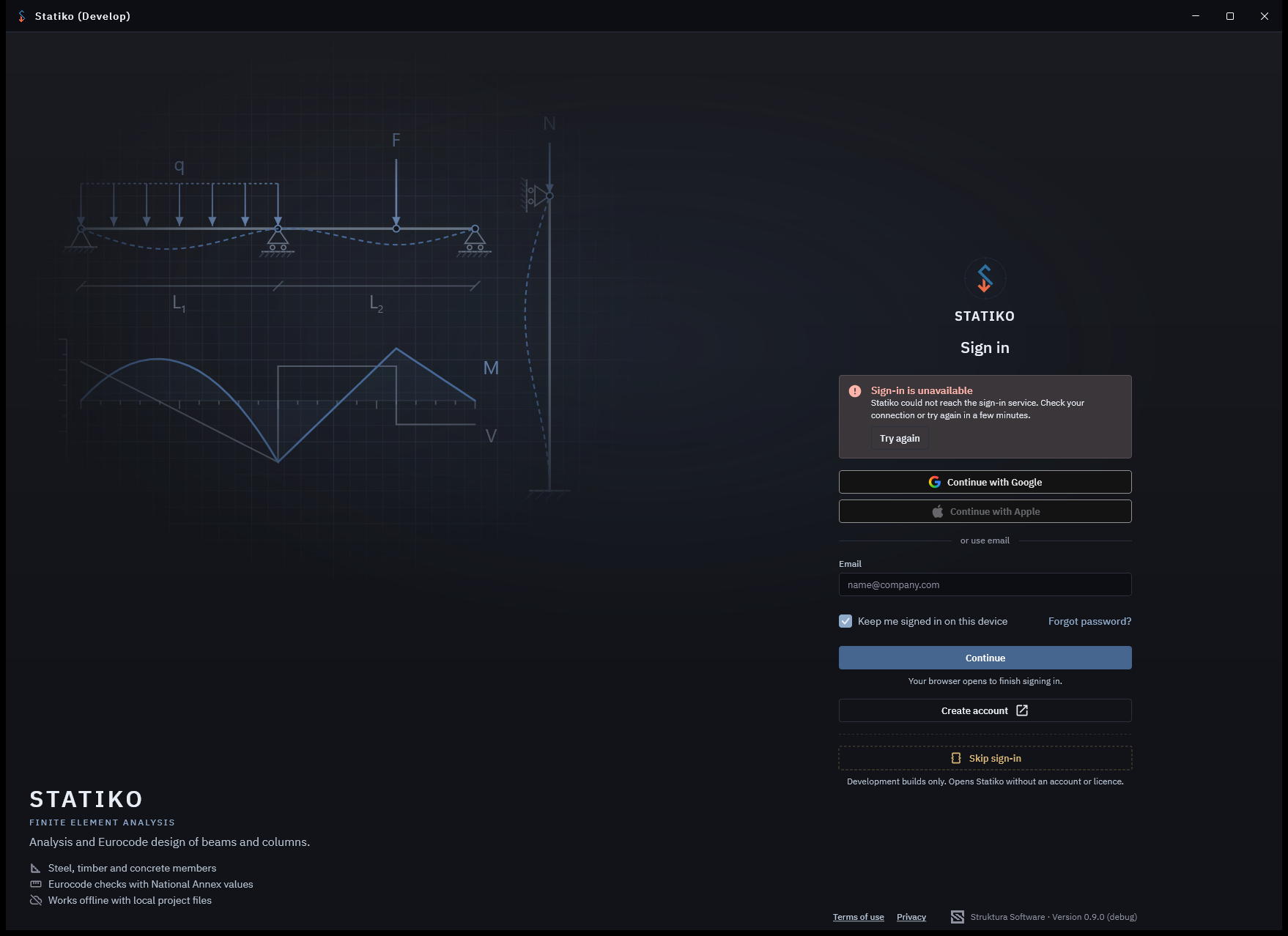
From top to bottom, the form holds:
- the title Sign in, and below it a notice when there is something to tell you;
- Continue with Google and Continue with Apple;
- under or use email, the Email field (placeholder name@company.com);
- the Keep me signed in on this device checkbox, ticked by default, and the Forgot password? link;
- the Continue button with the note Your browser opens to finish signing in.;
- Create account, which opens the website;
- in development builds, Skip sign-in below a dashed line, with the note Development builds only. Opens Statiko without an account or licence. Other builds show the link Open existing projects in its place.
The footer has the Terms of use and Privacy links, the company name and the version, for example Struktura Software · Version 0.9.5 (debug). Debug builds add (debug) to the version.
Continue with Apple is not available in this version. The button is always disabled and says Coming soon.
Skip sign-in: working offline
Skip sign-in is how you open Statiko in this version. It takes you straight to your projects in development access, with no account and no internet connection.
- On the sign-in screen, choose Skip sign-in.
- The hub opens on Projects. The navigation shows Development access where your account would be.
Development access grants no account and no paid licence. In the hub it reads Not signed in. Development access grants no account or paid licence., and nothing is saved to an account. Your project files are ordinary files on your computer, so they are not affected.
Skip sign-in stays available when you are offline.
Signing in with an account
Sign-in always finishes in your web browser, never inside Statiko. Type your email, or leave it empty, and choose Continue or Continue with Google. Pressing Enter in the email field does the same as Continue. Statiko opens your browser and shows Continue in your browser with a Cancel button, and the rest of the form is disabled until you finish or cancel. When the browser hands back, the button reads Signing in… until you are in.
These notices can appear above the form:
| Notice | What it means | What you can do |
|---|---|---|
| Sign-in was cancelled | You chose Cancel or closed the browser page before finishing. | Try again when you are ready. |
| Verify your email | Your account email is not verified yet. | Open the link in the email, or choose Resend email. |
| You are offline | Signing in needs an internet connection. Google, Continue and Create account are disabled; Forgot password? does nothing while you are offline. | Connect and try again, or use Skip sign-in. |
| Sign-in is unavailable | Statiko could not reach the sign-in service, or this build has none. | Choose Try again. |
| Legal documentation is not available yet. | The Terms of use or Privacy page has no address in this build. | None. |
Create account and Forgot password? open the matching pages in your browser. Terms of use and Privacy open the licence and privacy pages on the website.
Licences in this version
Statiko never needs a service to open, calculate or save local projects. Builds without the development entry offer Open existing projects. It opens the hub for reading, where a notice explains: A verified licence is required to create or edit projects. Existing files remain available for reading and recovery.
The beta licence by invitation, the free trial, activated devices with their limits, offline licence periods and Check licence again are not available in this version.